Windmill MCP
Windmill supports the Model Context Protocol (MCP), an open standard that enables seamless interaction between LLMs and tools like Windmill.
With MCP, you can connect your favorite LLMs (like Claude, Cursor, or any MCP compatible client) to Windmill, allowing you to trigger your scripts and flows from your client chat.
Additionally, MCP provides access to Windmill's API endpoints for basic operations on:
- Jobs - Monitor and manage job executions, including tracking their progress, retrieving logs, and viewing execution results
- Resources - Create, read, update, and delete resources for third-party system connections like databases and APIs
- Variables - Manage workspace variables and secrets for secure credential storage and configuration management
- Schedules - Control scheduled executions with CRON-like automation for scripts and flows
- Workers - Monitor worker status and configuration, including worker groups and resource allocation
Connect with Claude
From the Claude Connectors Directory
The easiest way to connect Windmill to Claude is through the Claude Connectors Directory:
- Go to the Connectors Directory and search for Windmill
- Click Connect and log in to your Windmill account
- Select your workspace and choose which tools to expose
- Start using your scripts and flows directly from Claude
As a custom integration
You can also add Windmill manually as a custom integration:
- Go to Claude > Settings > Integrations
- Click "Add an integration"
- Name it "Windmill" and set the URL to:
https://app.windmill.dev/api/mcp/gateway
For self-hosted instances, replace the URL with your own instance base URL (e.g. https://windmill.example.com/api/mcp/gateway).
- When redirected to Windmill, select your workspace and configure the scope
- Click Approve to complete the connection
How to use
Connect with OAuth
The simplest way to connect any MCP client is via OAuth. Just add the following URL to your MCP client:
<base_url>/api/mcp/gateway
(e.g. https://app.windmill.dev/api/mcp/gateway for Windmill Cloud, or your own instance URL for self-hosted)
This is the gateway URL — it works without knowing your workspace ID upfront. During the OAuth flow, you'll be prompted to select your workspace and configure which tools (scripts, flows, endpoints) to expose.
If you already know your workspace ID, you can also use the workspace-specific URL:
<base_url>/api/mcp/w/<your-workspace-id>/mcp
(e.g. https://app.windmill.dev/api/mcp/w/my-workspace/mcp)
Both approaches automatically handle authentication via OAuth.
For more fine-grained usage, you can manually create a token to choose which tools are exposed to the client (see below).
Generate your MCP token and URL
- Navigate to your account settings in Windmill.
- Create a new token under the Tokens section, and select Generate MCP URL.
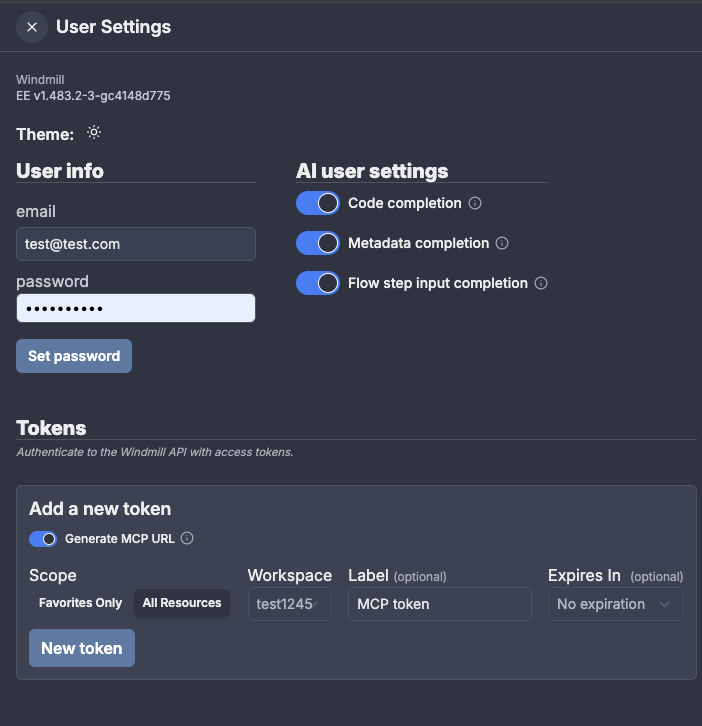
Once created, your MCP URL will look like this:
<base_url>/api/mcp/w/<your-workspace-id>/mcp?token=<your-token>
(e.g. https://app.windmill.dev/api/mcp/w/my-workspace/mcp?token=abc123)
This token is used to authenticate MCP clients and generate your personal MCP endpoint URL. Save this URL securely. Treat it like an API key—anyone with access can trigger actions in your workspace.
Connect your LLM to Windmill
Most modern LLM agents and interfaces now support MCP as a plug-and-play integration. The Windmill MCP server uses HTTP streamable as the transport layer, and MCP clients should be configured to use that protocol. Here are some examples configurations, for Claude Desktop and Cursor.
To connect with Cursor:
- Go to Cursor > Settings > MCP Tools
- Click on "Add a Custom MCP server"
- Add the following configuration in the json file:
{
  "mcpServers": {
    "windmill-mcp": {
      "url": "<base_url>/api/mcp/w/<your-workspace-id>/mcp?token=<your-token>"
    }
  }
}
To connect with Claude:
- Go to Claude > Settings > Integrations (here)
- Click on "Add an integration"
- Choose a name for your integration (e.g. "Windmill")
- Add your MCP URL in the "URL" field
To connect with Claude Code:
- Use the Claude Code CLI to add the Windmill MCP server:
claude mcp add --transport http windmill <windmill_url_with_token>
Replace <windmill_url_with_token> with your actual MCP URL from the previous step.
Once connected, your LLM will be able to run any script or flow in your Windmill workspace.
Example: Triggering a script from Claude
Say you’ve created a script called send_welcome_email.
Once your MCP server is connected, in Claude you could type:
“Send an email to user@example.com with the subject 'Welcome' and the body 'Welcome to our service!' with Windmill”
Claude will:
- Find the
send_welcome_emailscript in your windmill workspace - Ask you for required inputs if needed
- Run the script and show you the result right inside the chat
Example: Running a flow and checking its status
You can also trigger multi-step flows and use the built-in API endpoint tools to monitor them:
"Run the 'daily_data_sync' flow with the parameter region set to 'us-east-1'"
The LLM will find and execute the flow, then you can follow up:
"What's the status of the job that just ran?"
Claude will use the Jobs endpoint tool to look up the most recent execution, returning the job status, duration, and result.
Example: Managing resources through chat
MCP exposes Windmill's resource management as endpoint tools. You can create or inspect resources conversationally:
"List all my PostgreSQL resources in Windmill"
"Create a new Slack resource called 'alerts-channel' with webhook URL https://hooks.slack.com/services/T00/B00/xxx"
Claude will use the Resources endpoint tools to list, create, or update resources in your workspace without leaving the chat.
Available MCP Tools
In addition to your workspace scripts and flows (which are exposed as individual tools), the Windmill MCP server provides the following built-in API endpoint tools:
Scripts & Flows
| Tool | Description |
|---|---|
listScripts | List all scripts in the workspace |
createScript | Create a new script |
getScriptByPath | Get a script by its path |
deleteScriptByHash | Delete a script by hash (admin only) |
deleteScriptByPath | Delete a script at a given path (admin only) |
runScriptByPath | Run a script by path |
runScriptPreviewAndWaitResult | Run a script preview and wait for the result |
listFlows | List all flows |
getFlowByPath | Get a flow by its path |
createFlow | Create a new flow |
updateFlow | Update an existing flow |
deleteFlowByPath | Delete a flow by path |
runFlowByPath | Run a flow by path |
Resources & Variables
| Tool | Description |
|---|---|
listResource | List all resources |
getResource | Get a resource |
createResource | Create a new resource |
updateResource | Update an existing resource |
deleteResource | Delete a resource |
listResourceType | List available resource types |
listVariable | List all variables |
getVariable | Get a variable |
createVariable | Create a new variable |
updateVariable | Update an existing variable |
deleteVariable | Delete a variable |
Jobs & Schedules
| Tool | Description |
|---|---|
listJobs | List all completed jobs |
listQueue | List all queued jobs |
listSchedules | List all schedules |
getSchedule | Get a schedule |
createSchedule | Create a new schedule |
updateSchedule | Update an existing schedule |
deleteSchedule | Delete a schedule |
Apps & Workers
| Tool | Description |
|---|---|
createApp | Create a new app |
updateApp | Update an existing app |
listWorkers | List workers and their status |
Other
| Tool | Description |
|---|---|
queryDocumentation | Query the Windmill AI documentation assistant (EE only) |
Troubleshooting
- Not seeing any scripts/flows?
- Ensure your LLM tool is connected to the correct MCP URL.
- If you chose the "favorites only" option when creating your MCP URL, make sure the script or flow is in your favorites.
- My LLM does not find the correct script/flow to run
- Ensure the script or flow is deployed and visible in your workspace.
- Choose good titles and descriptions to help the LLM find the correct script/flow.
- Client has issues connecting to the MCP server
- Make sure your MCP client is configured to use HTTP streamable as the transport protocol.
- Verify that your MCP URL is correct and the token is valid.
Learn more
- MCP official docs
- MCP compatible clients
- Windmill Privacy Policy
- Support & Community — join our Discord or open an issue on GitHub